
The Firefox browser sometimes goes to an extent where although you are not fully using it, the browser takes up a lot of RAM and thus restricting the proper usage of other apps in the background, slowing down the computer. Fortunately, you wouldn’t need to do a lot with the tabs and close down the browser to see the things changed, because there is a way to get things under control in the computer.
Reducing the RAM being used by the Firefox browser would help solve the issue and keep the computer running smoothly. To do that, you have got to do a few changes in the browser itself. Follow the guide below for the same. If you wanted to make your browser faster, we have a big list of things you can do to see the performance of Firefox being made better.
How to Reduce RAM using when using Firefox
Go to about:config and deal with the message warning you about the warranty, and press the button saying “I’ll be careful, I promise!”

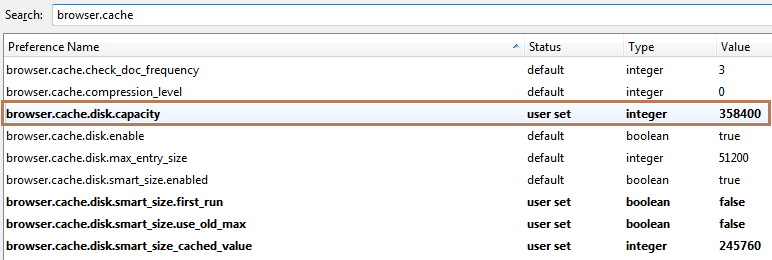
Now, filter “browser.cache”, and then in the list, select “browser.cache.disk.capacity”.
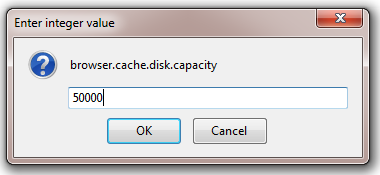
Now comes the actual part. Under the Value area, you would see the number which indicates the amount of RAM that is given to be used by the browser. You can alter that, and you would need to do that based on the RAM that is available in your computer. As in the case given in this guide, it’s set to around 3.5GB because we are running 8GB of RAM. For someone who is having a 1GB RAM in their computer, setting a value of about 15000-20000 would be wise.
How to Reduce RAM using when Firefox is Minimized
Reducing the RAM usage for Firefox when you are actually not using it, but haven’t closed it down totally, would be good if you wanted to use some heavy software along with it, and didn’t want Firefox to block the RAM. The steps given below would really be helpful and the main advantage here is that you won’t be seeing any huge difference when you start using RAM, thus it is worth a try.
Again, go to about:config and to the next page by pressing the same button the warning page.
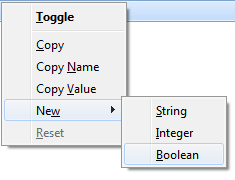
In the config page, right click anywhere and click New > Boolean.
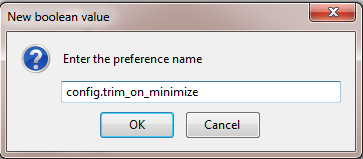
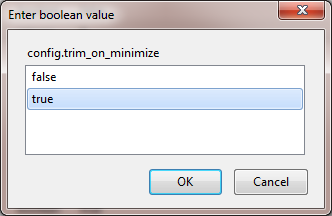
Now, enter the name of the Boolean as “config.trim_on_minimize” and set it to True.
Set the value as True in the next window.
Now, once you restart the Firefox browser, the settings would start acting and you will be able to notice the browser not eating much RAM when you aren’t using it and it is minimized. The amount of RAM that is saved, is well noticeable and it would come to best use when you have a limited RAM in the computer.
So these were the steps using which you can try to make the performance of the computer better by limiting the usage of the RAM by your favorite browser.