
 The Mozilla Firefox browser has got the very simple and good PDF viewer by default to open the PDF files without having you to worry about the external applications. But that can go weird quite a lot of times, and although you have set that to open the files without asking. There are a couple of workarounds to fix the issue, where the browser was downloading the PDF file automatically without opening it in a new tab.
Delete the “mimetypes.rdf” file from your Folder
This is the file which would save the downloads actions, and thus resetting it would be helpful. Deleting it won’t cause any real problem, and would solve the main issue you have got.
To delete the mimetypes.rdf, you need to open your profile in Firefox, which can be done with the steps given below:
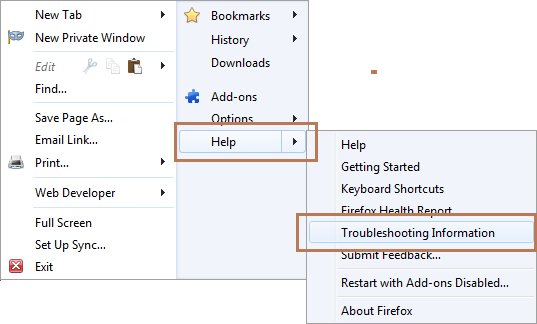
Open Firefox Menu > Help > Troubleshooting Information
* Alternatively, you can just type about:support in the address bar and press enter.
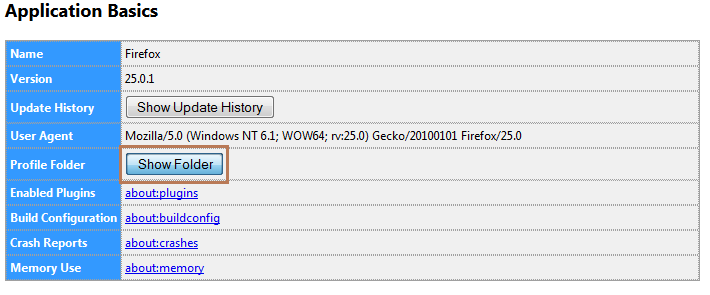
The troubleshooting information tab would open in the browser, listing the information of your browser. Under the Application Basics section, there would be an option “Show Folder” beside “Profile Folder”. Click on Show Folder, and it would take you to the Windows explorer folder where your profile is located.
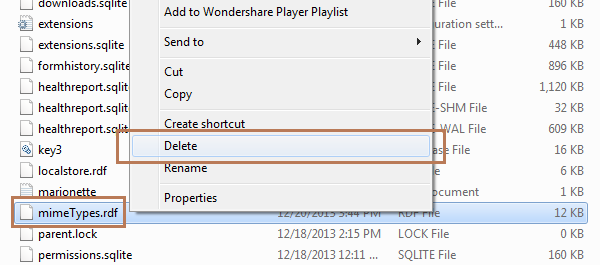
Close the browser, and then in the profile folder, browse to mimeTypes.rdf and delete that file. Now start your browser and then check by opening a PDF on the web.
Re-initialize the Firefox Plugin database
Some times the plugins re-installation would not do the job, but you can try to re-initialize them and make Firefox open the PDF file using the Adobe Reader plugin. Here’s how you can do that.
Go to the Troubleshooting Information just like in the above steps, by either going to Help > Troubleshooting Information or by typing about:support in the address bar.
Now, under the Application Basics, select the “Open Folder” to open the folder of your browser profile.
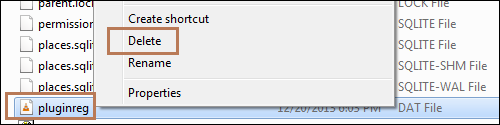
Now close the browser, and then in the profile folder, browse to pluginreg.dat and delete that file.
To check the list of plugins, type about:plugins and press enter.
Check Adobe Reader Preferences
You need to check if you have set that to open the PDF files in the browser itself. For that, you would need to do the following:
Open Adobe Reader in your computer, and then in the “Edit” menu, open “Preferences”.

Under the preferences, go to the Internet tab and see if the first option, i.e. “Display PDF in browser” is checked. If not, check that and save the preferences, restart your browser and check again.
Final try – Re-install the Adobe Reader
The settings might not have changed and the Adobe reader as well as it’s plugin the Firefox browser might act stubborn to make things unchangeable. Thus, try to re-install the Adobe reader and this is the only solution you can look for.
Make sure you are running the latest version of the Firefox browser, as well see that there are no add-ons in the browser which are disabling the javascript (which opens the PDF in the browser), and thus the browser is directly downloading the file instead of opening it.
There could be several reasons for this to happen, but one of the solution could work out for you. There is also a “Preview in Firefox” option under the Portable Document Format (PDF) in applications tab, which you can check and see if Firefox responds well to that, although the default one would be to open the file using either the in-built PDF viewer, or the Adobe Acrobat or the Adobe Reader, based on how you chose the settings in those external applications while installing them.