
 Many times it happens that due to many problems the photos from your camera, USB drive, computer gets deleted. So, after the photos gets deleted, is there any way where in you can restore them? The answer is yes, you can restore the photos. So, let’s check out how you can restore the deleted photos easily. Generally, we have a habit of restoring items from Recycle bin if we delete anything, but unfortunately when the photos are deleted from the devices like USB drives, cameras etc. don’t move in to the recycle bin, in fact these files get deleted directly.
The tool which we will be helping out in restoring the file or the photo is Recuva. So, let’s get started and proceed to install the same.
Procedure to restore the deleted file using Recuva:
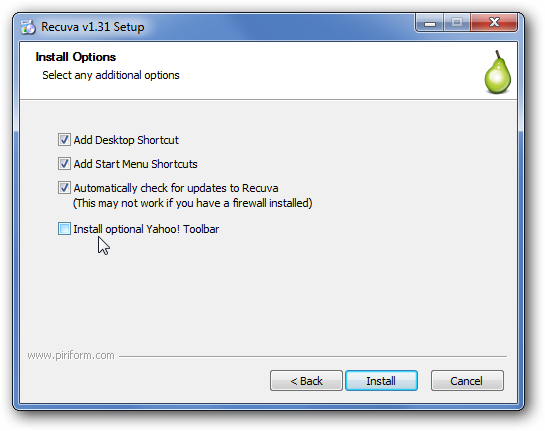
- After downloading the Recuva software in your computer, you need to open it for installing. As soon as you open the downloaded file, you will see a screen below, wherein you will have to choose the preferences like desktop shortcut, add start menu short cut or you can also choose to install the Yahoo tool bar as shown below. After selecting the preferences, click on the Install button.
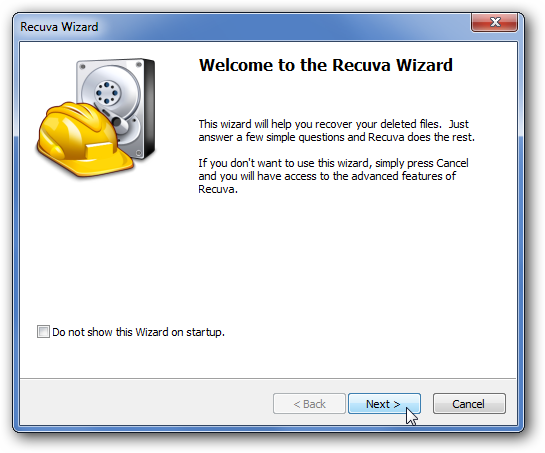
- As soon as you click on install, you will find that a welcome wizard will be displayed, just click on Next button below.
- Next up you will see a wizard wherein you need to select for which files you want to recover, select one out of Pictures, Music, Documents, Videos, Emails or other.

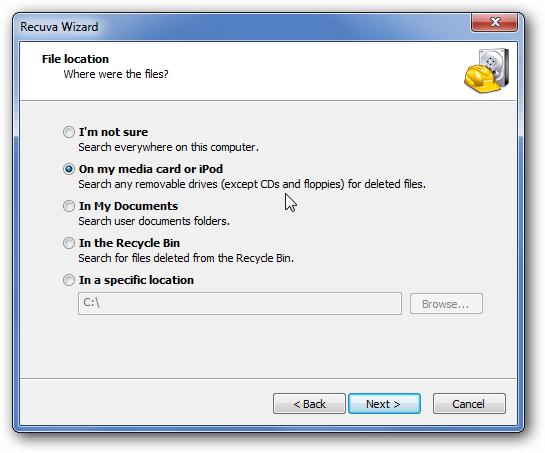
- After selecting the file type which you wish to recover, it’s time to select on from where you want to recover the files from, like you can choose from your iPod or Media card, My documents, Recycle bin. Any specified path in your computer or simply you can choose the option I’m not sure as shown in the below snapshot.
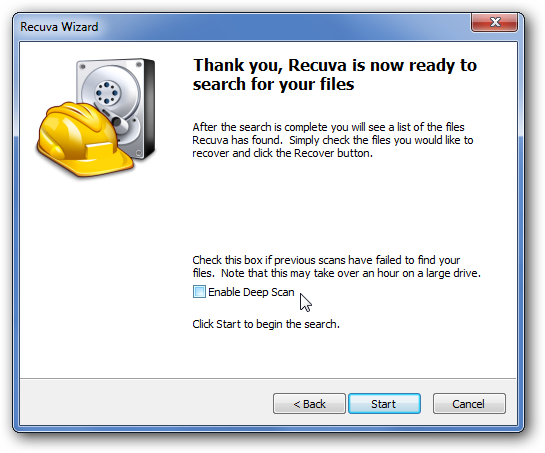
- After selecting the location and the file type from the above options, check the option Enable deep Scan and that’s it, proceed by clicking on Start button as shown in the below snapshot.
- After clicking on Start, you will find the tile of photos as shown below after few seconds of deep scanning.

- If there are many files or photos which you wish to recover from the list of tiled result as shown above then you will can enable the Switch to advanced view option so that the process speeds up and also you can look out for some other important photos which you may want to recover.
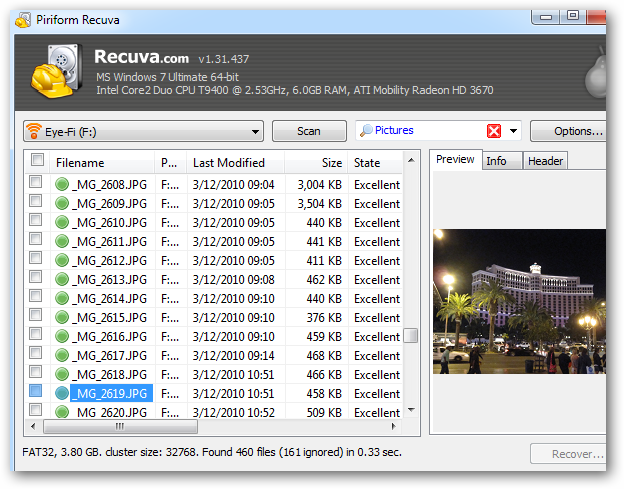
Now, simply right click on the file or photo which you want to recover any just save the file wherever you wish to save the same and that’s it, you have successfully restored the file.