
 When G mail arrived, many of us loved the interface and from then many people including me has switched over to G mail because of many reasons to make use of convenient docs and G talk to name a few. But does that mean that you need to give up your old mail for switching over to the new one, the answer is no. And also there’s no need to login to your old email accounts to check whether any new mails have arrived or not? All this with a perfect blend of convenience, all thanks to an application called IzyMail with which you can mails from yahoo without needing to go to yahoo account for sending the mails from your yahoo account domain.
Let’s check out how we can configure your yahoo mail account with the GMail in a step by step manner.
1. First, all you need to do is to register with Izymail.
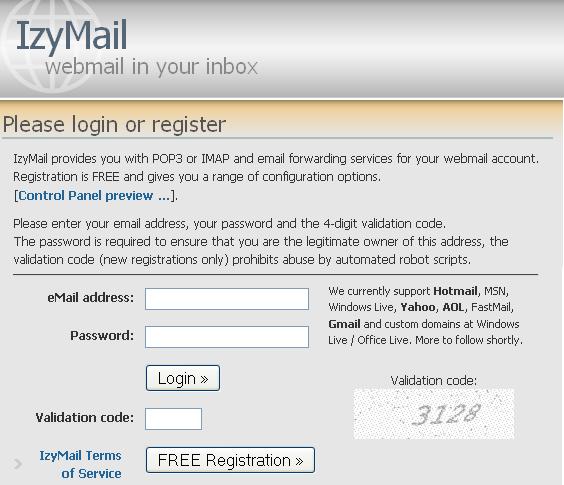
2. After registration, first log in to your G mail account and then click on “settings”, then on “accounts”. There’s an option called “add another address”. After clicking a new pop up will be coming on the screen, now all you need to add is to enter your yahoo email address and click on “next” step and then click on “send verification”. Now go to the email account which you have entered in the “send verification” field and verify the same. Now next time when you go to option “Compose mail” and you will find a drop down tool where you can select the other email id and can select the yahoo mail.

Now, what you can do to get the messages in your G Mail inbox which are generally meant to get delivered in your yahoo account as shown below. The new version of yahoo doesn’t come with POP3 support, so all you need to do is to just open Izymail which gives you free POP 3 support. Register using your yahoo account credentials and then enter G mail address in the email forwarding options and then again you will receive the confirmation email in your G mail inbox. What’s more is you can also set the frequency of the emails.
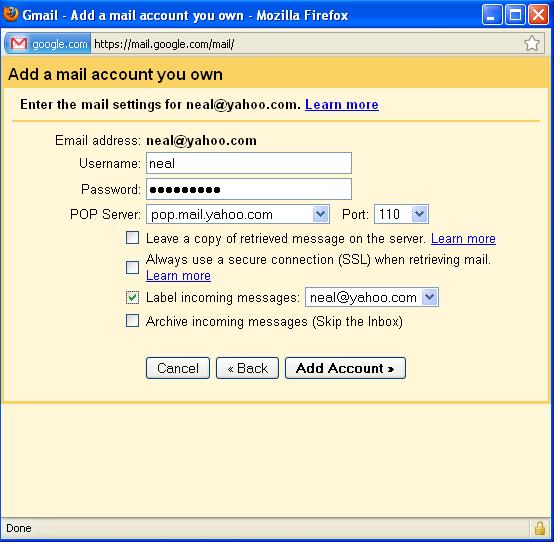
What you can also do is you can import all your Yahoo mails into your G mail account. Register as mentioned above and then go to G Mail’s account settings. Click on “add another mail account” option and then add your yahoo credentials in the page. In POP 3 server, enter in.ezymail.in and add “110” for port and uncheck the box which say’s “Always use a secure connection when retrieving mail” as shown in an image above. Now after un checking the option, you will now have to verify your yahoo email id. Now ezymail has linked yahoo email client so that you can read all your mails in your G Mail account.