
One of the most common problems for a computer user who browser the web regularly, is the slowing down of the web browser. The problem isn’t limited to any one particular browser but each one shows the same performance issues, and as the time progresses, there is a lot of slowing down seen. Every browser initially is quite speed, but later on you would experience it’s slowing down and sometimes the crashing down too. It all happens with a reason, and there may be several of those which need to be checked before you blame the browser maker for giving you such a slow performing browser.
Let us see what all you would need to do, to make the Firefox browser better in performance. The basic principle here would be “reduce the load and slowly remove each saved stuff” and see how things turn around.

Disable unnecessary add-ons, or remove them
You install add-ons for some specific purpose many a times, and once that single time usage is done, you forget about it. But the add-on would stay installed and add to the load to the browser. Delete the add-ons which you are not using and you feel, are not necessary.
Go to Firefox Menu > Add-ons
Keyboard shortcut: Ctrl + Shift + A

You would see the list of add-ons which you have installed, and which are enabled in the browser. The ones which you feel aren’t necessary, better be disabled, or directly removed if you don’t plan to use it in the future too. The disabled ones would go to the bottom of the list and stay there, but won’t do much harm to the browser. Still, we suggest you to remove them totally because the add-ons are not very big in size and thus can be downloaded any time later.

Assess if Add-ons are the reason
To check whether add-ons were the actual reason for the slowing down of your browser, go to Firefox Menu > Help > Restart with Add-ons Disabled and if the stability and speed of Firefox increases, try to do a fresh enabling of each add-on separately and then find the culprit.

Update Plugins to the latest version
In the same Add-ons section, there is a Plugins tab where all the active plugins in your browser are listed. You don’t have to do much about the activity of them, because these are what would keep your browser running perfectly, opening different types of file formats, but make sure you are not using any outdated version of the plugins, as it could lead to poor performance. On the top of the plugins list, click on the option “Check to see if your plugins are up to date”.

The update engine would open a new tab where Mozilla would check for the updates available for each plugin, and you would see the notification for the outdated plugins, as given below.

Clear History and Start Over
Clearing history would be just like a fresh brain without any memories in it, and imagine how fast can it work. Here, we mean to say clearing everything from the past in the browser.
Go to Firefox Menu > History > Clear Recent History
Keyboard shortcut: Ctrl + Shift + Del

In the Clear History pop-up window, select “Everything” under Time range to clear. The browser would show a warning that All history will be cleared and this action cannot be undone. But to get something, you sometimes need to leave something. Select all the types in history, i.e. browsing history, form history, cookies, cache, active logins, offline website data and site preferences and hit the “Clear Now” button. This surely is going to help a lot.

Delete History when Firefox Exits – If above steps changed it a bit
If you feel things are going on fine, and the browser is already performing a bit better, then it was your history too which was contributing to the problem. Set the history to be deleted every time you close the browser.
Go to Firefox Menu > Options
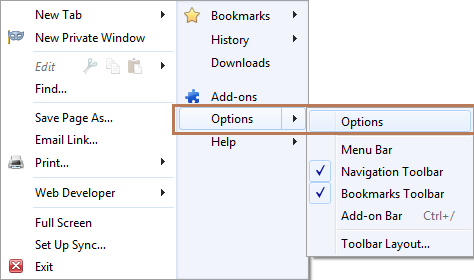
Under the Privacy Tab, go to the History section and select “Use Custom settings for history” under “Firefox will” option.

There will be a big set of options opened for you for the custom setting, where without disturbing the other things, you need to go to check “Clear history when Firefox closes” and then click on “Settings” just beside to it.

This is the section where you are setting Firefox to delete the history when you quit Firefox. This includes most of the stuff and it’s your choice on what you wish to delete, and what you wish to retain. It’s best to retain the active logins and offline website data as they won’t affect much.

Delete History Selectively – by Website
Go to Firefox Menu > History and click on “Show All History”.
Keyboard shortcut: Ctrl + Shift + H

You will see the history organized based on the time, i.e. today, yesterday, last 7 days, the different months etc. Right click on a website which you browsed, and you see two options – Delete this page and Forget About this Site. Clicking on the second option would delete all the pages of that particular website in the history. For example, if you read news online on daily basis on cnn.com, right click on any cnn.com page and select “Forget About this Site”, and all the pages that were browsed, would get deleted. Caution: this doesn’t ask for your confirmation, so be selective and think before you do it. You won’t be able to reverse it.

Disable History Sync in Firefox Sync
This is a big factor in slowing down the performance of the browser, where if you are using the Firefox Sync to sync the browser data across the various computers, then make sure you have the “History Synchronization” disabled. Why? because if you have browsed a lot in the other computers over a year or so, the Firefox Sync would download all the history from the past years and that would easily slow down and make the Firefox browser unresponsive.
Check for updates
Mozilla sends regular updates to the Firefox browser, and the browser updates itself automatically but for that to install, it would need a restart. Go to Firefox Menu > Help > About Firefox and check if any updates are available. If any latest one is already downloaded, there would be a message saying “Restart to Update”.

Use Places Maintenance Firefox Add-on
This is something not easily understandable if you are a normal user, but you don’t need to do much more than installing it and let it do the job. The add-on allows to run Maintenance tasks on the database that drives Places, the bookmarks and history module behind Firefox.
Install from here: Mozilla Add-ons.
Some out-of-browser tips
If everything above didn’t totally resolve the issue, here are some of the tips you need to follow and check if the overall performance of your computer and the browser gets better with it.
- Update your graphics driver, because Firefox, if doesn’t find one, it would disable the hardware acceleration
- Clean the malware and viruses with a recommended Antivirus, and disable / uninstall any toolbars which were installed by the various softwares
- Disable and re-enable the System restore to remove the restore points, slowing down the performance
- Disk defragmentation – A must-do every now and then when you are playing around a lot with your computer
- Try to block ads (especially the flash ones) using any tools because these unnecessarily would keep the flash plugins running
Having done everything, if you are still worried that the browser is not performing well, try to uninstall Firefox, delete the entire profile of yours in the System (before deleting the browser, type about:support in the address bar and type enter and then click on “Open Folder” to open the profiles folder), and do a fresh install with the latest version of Firefox.